How to Write Useful Alt Text for Business Website Images
A website image can show something that the surrounding copy never explains. Alternative text, often called alt text, helps communicate that information when the image cannot be seen. Writing it well starts with an editorial question: what does this particular image contribute to this particular page?
For a business website, the answer is rarely a list of keywords. A photograph might show a product detail, a screenshot might explain a step, and a linked icon might perform an action. Each needs a different approach. The examples below are hypothetical writing exercises, not customer results or claims about Nadouri services.
Decide what the image is doing
Before writing, read the heading and nearby paragraph. Is the image adding information, supporting an action, or simply decorating the layout? W3C’s alt-text decision tree distinguishes these situations. It recommends a concise description for meaningful simple images, a functional alternative for image-only controls, and an empty alt attribute for purely decorative images.
Do not assume every picture needs a detailed description. Equally, do not leave a meaningful picture undescribed just because its filename contains a useful word. Record the image’s purpose in your editing notes before choosing the wording.
Describe the detail the reader needs
Imagine a fictional shop page showing the inside of a backpack. “Backpack” names the object but misses the reason for that view. “Open backpack showing a padded laptop sleeve and two internal pockets” is more useful if those features are actually visible. Do not add “waterproof,” “comfortable” or a capacity unless you have verified the claim independently and it belongs in the page copy.
W3C’s guidance on informative images emphasizes communicating the meaning conveyed in context. A complete inventory of every object is not always necessary. Choose details that explain why the image was included, rather than describing whatever attracts your attention first.
Use the same photograph differently in different contexts
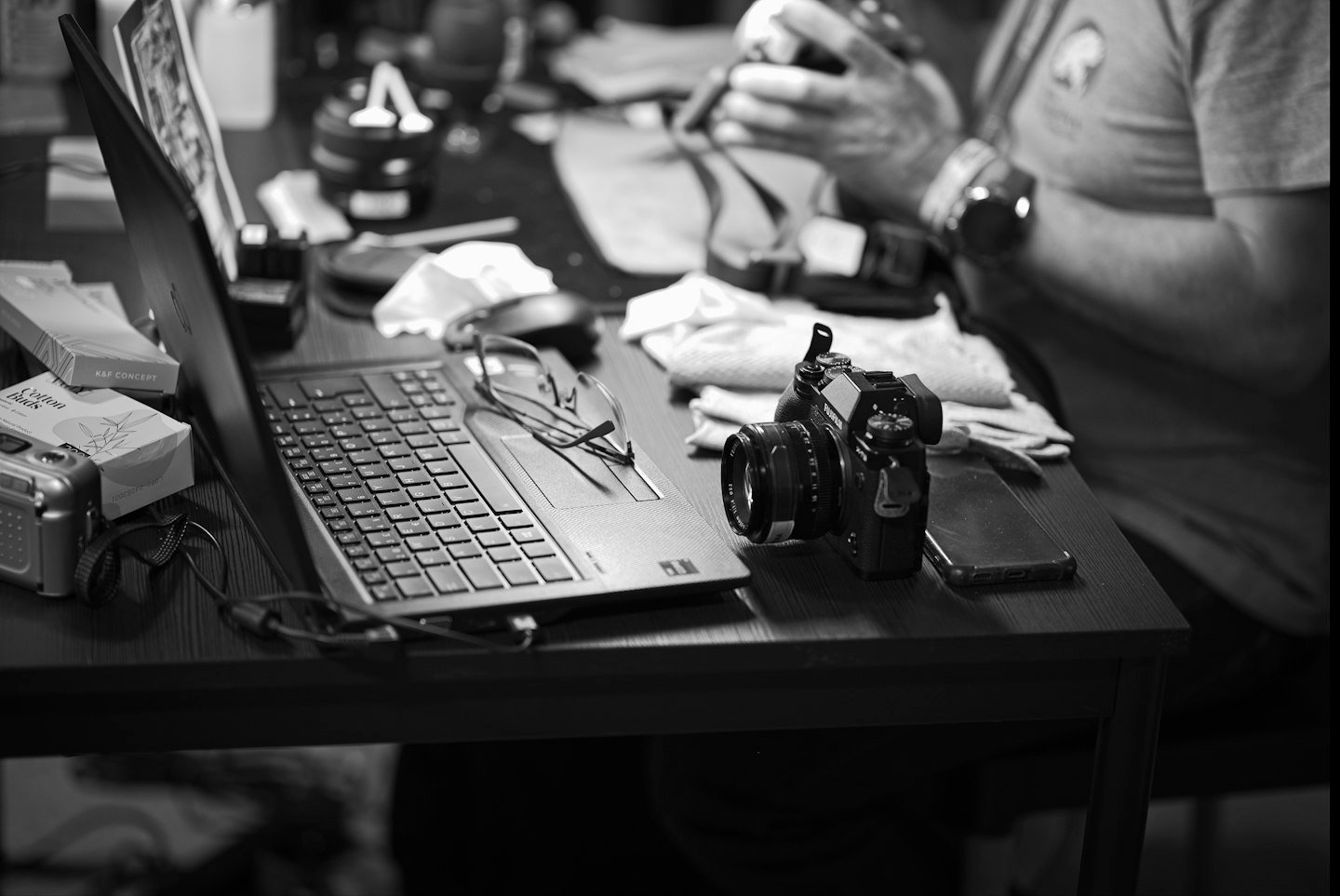
Consider the photograph at the top of this article. On a page about a photography workspace, “Camera, laptop and lenses arranged on a desk” could communicate the relevant scene. On a page about maintaining equipment, the person handling a lens may matter more. Neither description should claim that the person is a named employee or that the equipment belongs to your business.
Here, the photograph is an example for comparing descriptions, so its alt text identifies the scene. Its credit identifies the photographer. These two pieces of information have different jobs; avoid turning the alt text into a copyright notice.
Name the action when an image is a control
A small printer icon can mean “Print this article.” Describing it only as “Gray printer” leaves out what the button does. Likewise, an image that is the only content of a link needs an accessible name that explains its destination or purpose. W3C’s functional-image guidance explains this distinction between appearance and function.
If visible text already labels the same control, ask the developer how that text and the image work together. Avoid a repeated announcement such as “Download brochure, download brochure.” This is similar to writing clear form labels and error messages: the words must match what the interface actually does.
Keep screenshots and complex information understandable
For a help article, first write the complete instruction as normal page text. Then use a screenshot to help readers locate the relevant control. A hypothetical alternative might be “Export menu with PDF selected,” provided that is what the screenshot shows. Do not bury the only instructions inside an image.
For a chart or detailed diagram, put the important information and explanation in accessible page content instead of attempting an enormous alt attribute. W3C’s decision tree recommends providing complex information elsewhere on the page. Keep the short alternative focused on identifying the visual and its purpose.
Our guide to turning technical notes into a customer help article offers a related way to check that instructions reflect a verified process.
Review the saved page, not only the media library
Use a small review record for each meaningful image: page URL, image location, purpose, proposed alternative and verification note. A media-library entry is only a starting point; the same file can serve different purposes in different articles.
- Compare the wording with the actual image and surrounding text.
- Remove invented identities, benefits and promotional phrases.
- Check the saved page’s image alternative rather than assuming the editor copied it correctly.
- For linked images, verify that the accessible name explains the destination.
- Check the layout on a narrow screen and ask an accessibility reviewer to test important interactions.
Good alt text is one part of an accessible page, not a complete accessibility certification or a guarantee of search rankings. The useful outcome is simpler: readers receive the information or action that the image was meant to provide.